If Outlook won’t start, freezes while loading your profile, or reports that errors were detected in a .pst file, the Outlook data file that holds your mail is probably damaged. Before anything else, close Outlook and make a copy of the PST file. Then run Microsoft’s free Inbox Repair Tool, ScanPST.exe. This guide covers both steps, explains what ScanPST’s results mean, what to do when it fails, how to choose between desktop tool vs browser based PST repair service. and how to confirm your email really came back.
Table of Contents
Quick Answer
- Close Outlook and copy the PST file to another folder or drive.
- Run ScanPST.exe and repair the file. Repeat until it reports no errors; Microsoft notes several runs may be needed.
- Reopen Outlook and look for a Recovered Personal Folders or Lost and Found folder.
- If items are still missing, recover them from the .bak backup file ScanPST creates.
- If ScanPST fails or the file still won’t open, use a third-party repair tool: online for small files, desktop for large or badly damaged ones.
- Check the recovered mail before deleting any copies.
What Is a PST File?
A PST (Personal Storage Table) file, which Microsoft calls an Outlook Data File (.pst), stores email, calendar items, contacts and tasks locally for classic Outlook for Windows. PST files are typically used by POP and IMAP accounts, for archives, and for mailbox exports.
Microsoft 365 and Exchange accounts normally use an offline Outlook Data File (.ost) instead, which is a synchronized copy of a mailbox stored on a server. The difference matters when things go wrong. For a damaged OST file, Microsoft’s guidance is to delete it and let Outlook re-create it from the server. A PST file has no server copy, so a damaged PST has to be repaired.
PST files come in two formats. According to Microsoft’s documentation, Unicode PST files in Outlook 2010, 2013 and 2016 have a default maximum size of 50 GB. Older ANSI-format files are capped just under 2 GB, a limit Microsoft says exists to prevent corruption.
How Do You Know a PST File Is Corrupt?
These symptoms commonly point to a damaged PST file:
- Outlook won’t start, or stops on the “Loading profile” screen
- A message such as “Errors have been detected in the file Outlook.pst”
- A message saying the file “is not a personal folders file” or “cannot be accessed”, sometimes with error code 0x80040116
- Outlook crashes whenever you open a particular folder
- Emails, folders or attachments go missing without being deleted
These symptoms are not proof on their own. A faulty add-in or a damaged Outlook profile can cause similar behavior. If Outlook opens normally in safe mode (hold Ctrl while starting Outlook), an add-in is a more likely culprit than the PST file. Running ScanPST’s scan is the most direct way to confirm whether the file itself has errors.
What Causes PST File Corruption?
The most common risks are interrupted writes (a crash, power cut or forced shutdown while Outlook is saving), files approaching their size limit, disk faults, and malware. Network storage is another: Microsoft states that using a PST file over a network connection “may result in a corrupted .pst file if the connection degrades or fails.”
Back Up the PST File Before Repairing It
Microsoft recommends backing up your Outlook data file before running the Inbox Repair Tool. ScanPST changes the file it repairs, so keep an untouched copy you can always return to.
On Windows 10 and 11, PST files are stored by default in C:\Users\<username>\Documents\Outlook Files, according to Microsoft. If Outlook opens, you can confirm the location under File > Account Settings > Account Settings > Data Files. Close Outlook completely, then copy the .pst file to another folder or an external drive.
How to Repair a PST File With ScanPST
ScanPST.exe, also called the Inbox Repair Tool, is Microsoft’s free utility for checking Outlook data files for errors and repairing them. It is installed with classic Outlook for Microsoft 365 and Outlook 2016 through 2024.
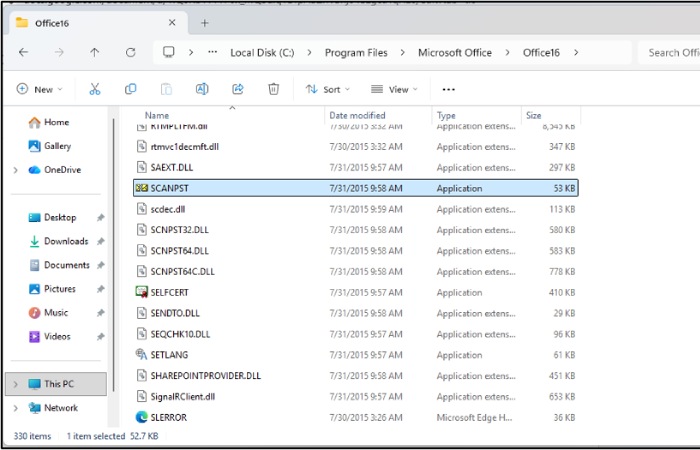
Where to Find ScanPST
Microsoft lists C:\Program Files (x86)\Microsoft Office\root\Office16 as the location for current versions. On 64-bit Office installations, it is usually in C:\Program Files\Microsoft Office\root\Office16 instead. If it is in neither, search your C: drive for SCANPST.EXE
How to Run ScanPST
- Exit Outlook.
- Open SCANPST.EXE.
- Select Browse and choose the PST file.
- Select Start to scan the file.
- If errors are found, keep the option to back up the scanned file selected, then select Repair.
- Start Outlook with the same profile.
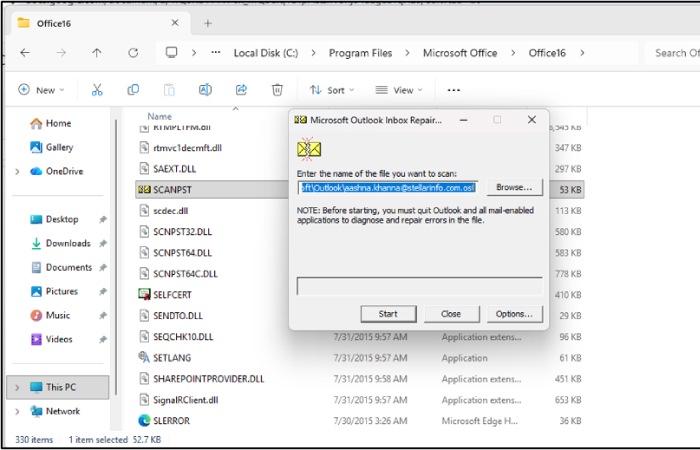
Microsoft notes that “you may need to run the tool several times” to repair a file, so it’s normal to run ScanPST two or three times until it reports no errors.
What Happens After ScanPST Runs?
A successful ScanPST run means the file’s structure has been repaired. It does not guarantee that every email came back. Microsoft states that items “may not be recovered if they were permanently deleted or corrupted beyond repair.”
Recovered Personal Folders and Lost and Found
After a repair, Outlook may show a folder named Recovered Personal Folders containing your default folders, or a Lost and Found folder. According to Microsoft, Lost and Found holds folders and items that the repair tool recovered but that Outlook can’t place back in their original structure. Microsoft suggests creating a new Outlook Data File and dragging those items into it.
The ScanPST .BAK File
Before repairing, ScanPST saves a backup of the original file in the same folder, with the same name but a .bak extension. If items are missing after the repair, Microsoft’s documented method is to make a copy of the .bak file, rename the copy with a .bak.pst extension, and import it using Outlook’s Import and Export Wizard.
When ScanPST Keeps Finding Errors
If ScanPST reports errors on every pass, it may not be able to fully fix the file. Robert Sparnaaij, a long-standing Microsoft MVP for Outlook, recommends a workaround for files that are still open: create a new PST file, copy the folders from the damaged file into it, set the new file as the default, and remove the old one from Outlook. If the file won’t open at all, his advice is to restore from a backup or use a third-party recovery tool.
How to Choose a PST Repair Method
The right method depends on the file’s size, how badly it is damaged, and whether Outlook is available on the computer.
| Situation | Suggested method | Main limitation |
| Minor errors; Outlook installed | ScanPST (free, built in) | Can fail on severe damage; may drop unreadable items |
| ScanPST fails; small file; no Outlook available | Online PST repair service | File-size caps; you upload a copy of your mailbox |
| Large file, severe damage, or data you can’t upload | Desktop PST repair software | Usually paid; runs only on your PC |
| A recent backup exists | Restore the backup | Loses mail received since the backup |
Repairing a PST File Online
Online repair services let you upload a damaged PST file, repair it on the provider’s servers, and download a rebuilt file. They don’t need Outlook or any software installed, which helps when Outlook itself won’t start. The trade-off is that you’re uploading a copy of your mailbox, which may contain sensitive information. Before uploading, check the provider’s encryption for files in transit and at rest, whether processing is automated, how long files are kept before deletion, file-size limits, and its privacy policy.
As an example, you can repair PST file online with Stellar’s service, which is free for files up to 500 MB and handles files up to 5 GB on a paid plan. It previews the recovered folder structure and item count before download. Stellar says processing is fully automated and files are deleted within 24 hours on the free plan and 48 hours on the paid plan, and its privacy policy describes encryption in transit and at rest. Because files are deleted after that window, download the repaired file promptly.
When Desktop PST Repair Makes More Sense
Desktop repair software runs on your own computer, so the PST file never leaves it. That suits files too large to upload, mailboxes you aren’t permitted to send to a third party, and files ScanPST can’t open. Look for software that works on a copy of the file rather than the original, previews recovered items before saving, and offers a free scan so you can see what’s recoverable before paying.
For example, Stellar Repair for Outlook repairs PST files in read-only mode without modifying the original, has no stated file-size limit, can recover deleted items, and offers a free trial that scans and previews recoverable data. It requires a licensed copy of Outlook on the same computer to save the repaired data as a new PST file.
How to Verify That Your Data Was Recovered
A repair tool reporting success is not the same as every important item being back. Before deleting the original file or the .bak backup, check:
- Inbox, Sent Items and custom folders, including their item counts
- Older messages, by sorting a large folder by date
- Attachments on a sample of emails, to confirm they open
- Contacts and calendar entries, including recurring appointments
- Search, to confirm Outlook can find messages by keyword
- Specific business-critical emails you know should be there
Keep the original PST copy until you are confident nothing is missing.
Does the New Outlook Support PST Files?
Partly. According to Microsoft, the new Outlook for Windows can open a PST file and import one into a mailbox. However, classic Outlook must also be installed on the same computer, in the same 32-bit or 64-bit architecture. The account needs a Microsoft 365 subscription, and PST files are not supported on the ARM version of the new Outlook. The new Outlook does not include ScanPST, so repair a damaged file before importing it.
How to Prevent PST Corruption
- Close Outlook properly before shutting down, and avoid forced restarts while it’s running.
- Keep PST files on a local drive, not a network share.
- Keep files well below their size limit by archiving or splitting old mail.
- Back up PST files regularly, with Outlook closed.
Frequently Asked Questions
Can ScanPST repair every corrupt PST file?
No. Microsoft states that items may not be recovered if they were permanently deleted or corrupted beyond repair. Severely damaged or very large files may need a third-party tool.
What is the .bak file ScanPST creates?
It is a backup of the original PST file, saved in the same folder with a .bak extension. To recover missing items, copy it, rename the copy with a .bak.pst extension, and import it into Outlook.
Can I repair a PST file without Outlook?
ScanPST is installed with classic Outlook, so you need Outlook to use it. Online repair services run in a browser and don’t need Outlook installed.
Can the new Outlook open a PST file?
Yes, with conditions: classic Outlook must also be installed in the same architecture, the account needs a Microsoft 365 subscription, and ARM versions are not supported.
Key Takeaways
- A PST file stores classic Outlook data locally and has no server copy, so it must be repaired rather than re-created.
- Always copy the PST file before running any repair tool.
- ScanPST is free and often needs several runs; a successful run doesn’t guarantee every item was recovered.
- Check Recovered Personal Folders, Lost and Found and the .bak file before giving up on missing items.
- Online repair suits smaller files when Outlook won’t start; desktop software suits large, severely damaged or sensitive files.
Also Read: How Managed IT Services Enable Boca Raton Businesses to Adopt New Technology Faster and More Safely